Setup GuideInstall NoLagVPN App
Set up the NoLagVPN desktop app on your PC in minutes
What You Will Need
Windows PC
Windows 10 or newer with administrator access
NoLagVPN Account
Your email and password to log in to the app
Before Installing
Installation Steps
Download and set up the NoLagVPN desktop app
Download the app:
Launch the installer and follow the installation steps
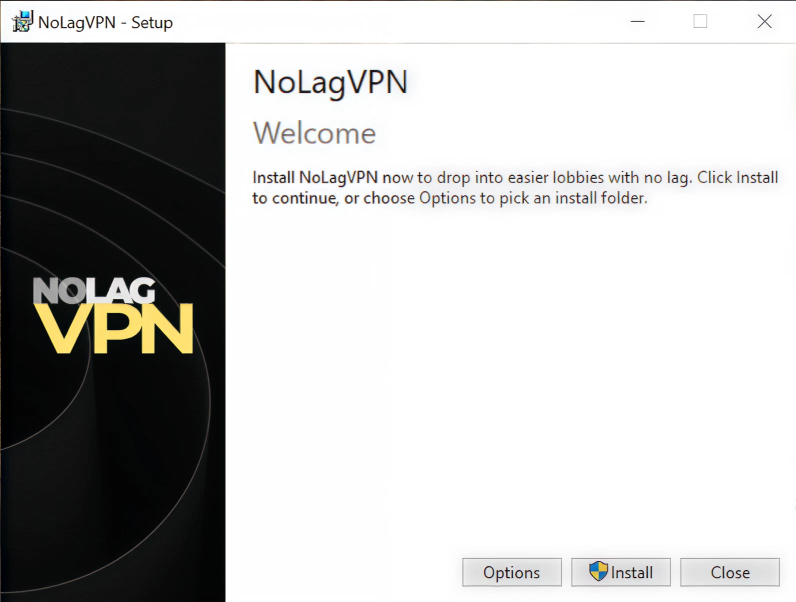
After installation, open the NoLagVPN application from your desktop or start menu
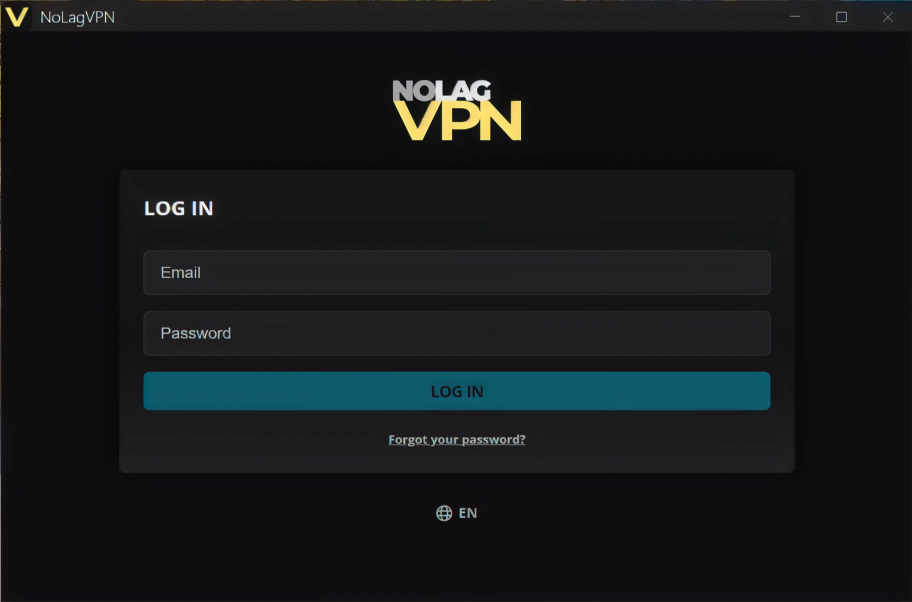
Enter your account credentials (email and password) and click Log In.
Once logged in, browse the list of available servers and select your preferred destination
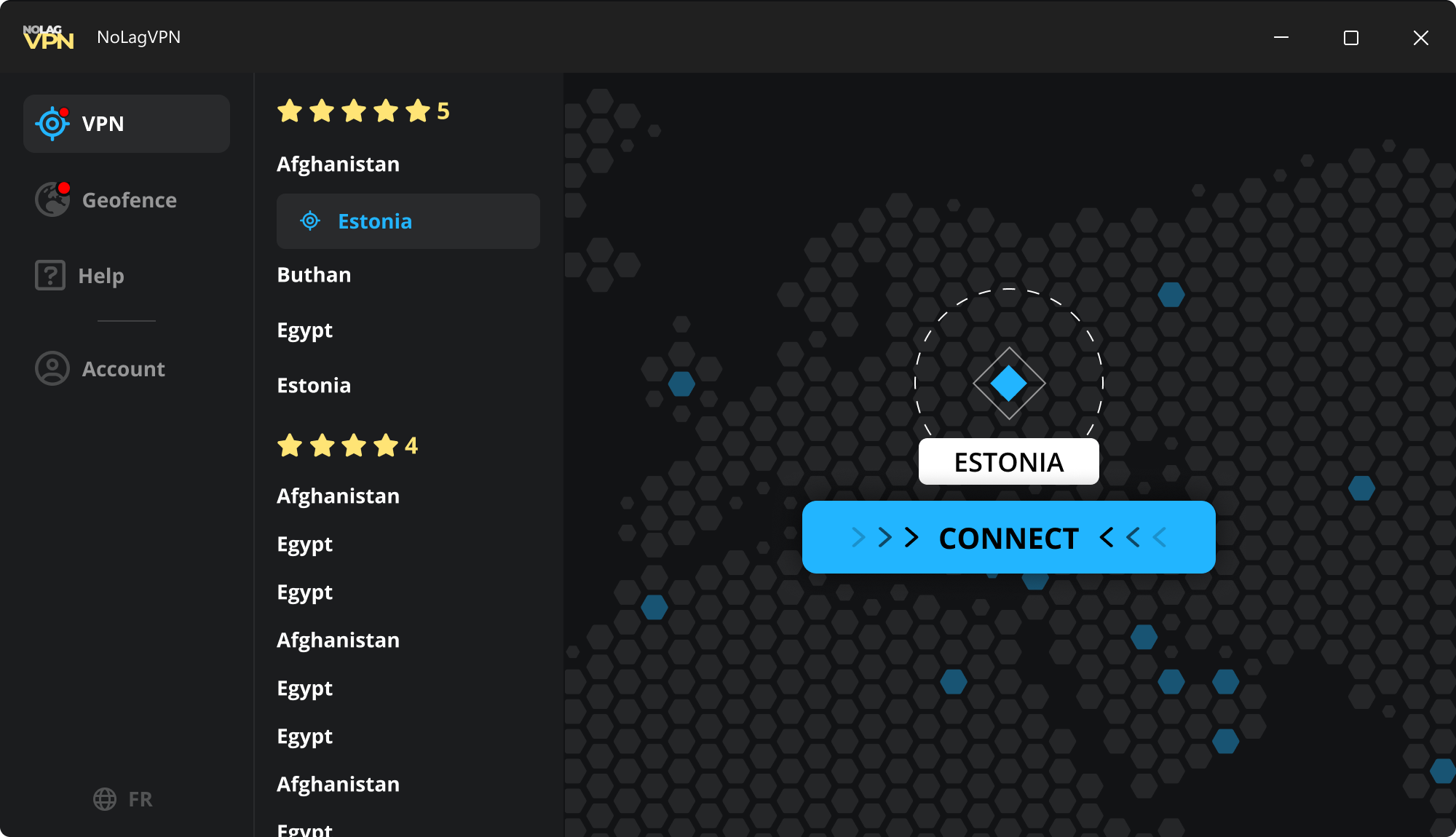
Finally, press the Connect button.
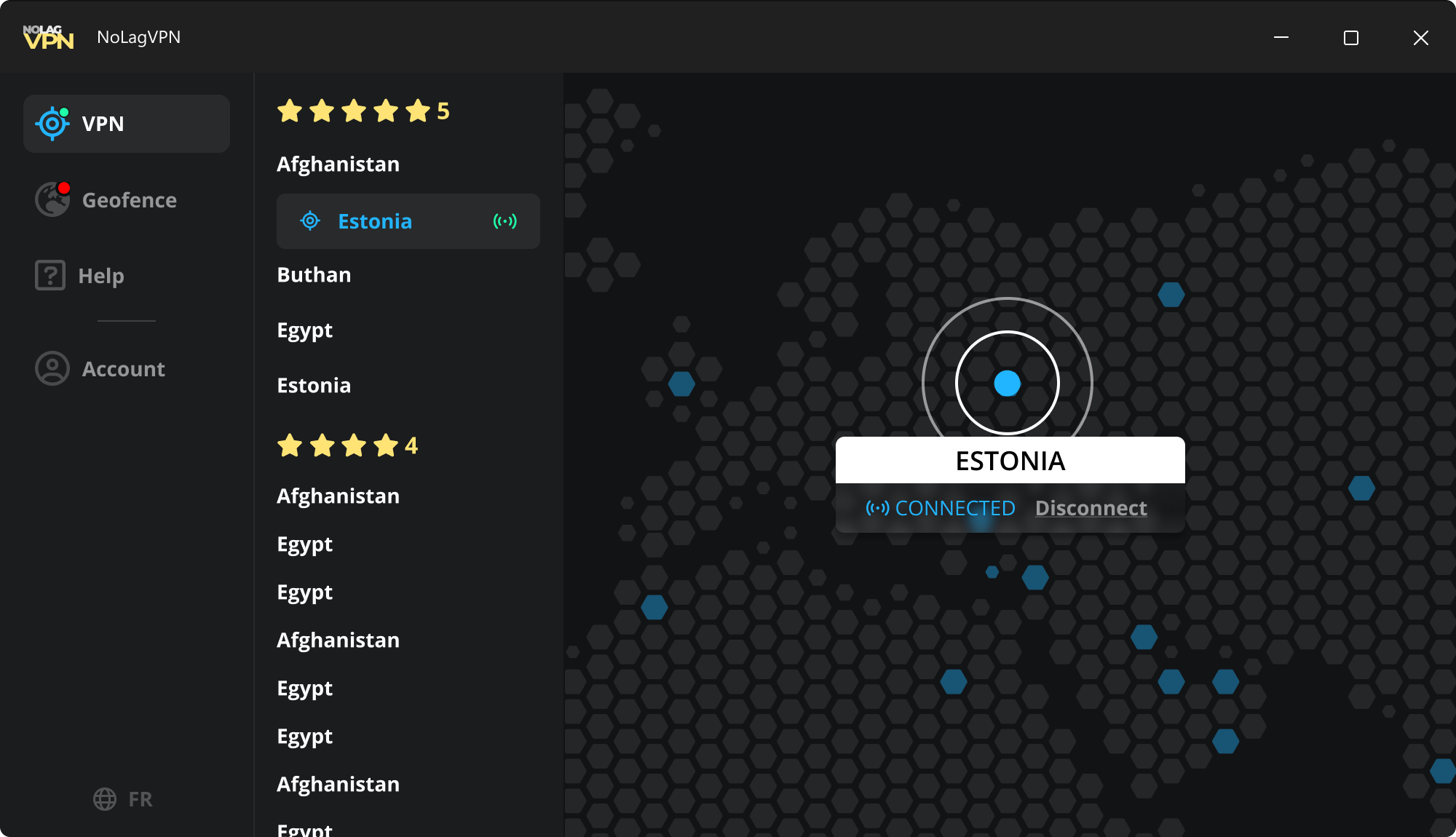
That's it, your PC is now connected through NoLagVPN!
Troubleshooting
Having issues? Try these steps
If problems persist, please contact our support team. While waiting, switch to OpenVPN (previous connection method) via your dashboard.
Ready to get bot lobbies?
Start dominating easier lobbies today