Setup GuideInstall NoLagVPN on Nintendo Switch 2
Configure your Nintendo Switch 2 in minutes and start dominating bot lobbies
Warzone and MW4 only
On Nintendo Switch 2, NoLagVPN works with Warzone and Modern Warfare 4 only.
What You Will Need
Access to Nintendo Switch 2 Settings
You will update the DNS settings in your console network configuration
Secondary Device
A phone, tablet, or laptop on the same network to activate NoLagVPN and select your server
DNS Configuration
Update your network settings on Nintendo Switch 2
Open "System Settings", select "Internet" and go to "Internet Settings".
Select the network you are connected to, then choose "Change Settings".
Set "IPv6 Connection" to "Disable".
Leave "IPv4 Address Settings" on "Automatic".
Set "DNS Settings" to "Manual". To clear a field before typing, hold the B button.
For the Primary DNS settings, enter:
(will be shared with you when you purchase the subscription)
For the Secondary DNS settings, enter:
Select "Save" to confirm the changes.
Select "Connect to This Network" and wait for the Switch 2 to test the connection. All done!
Important Notes
Activate NoLagVPN
Use your secondary device to complete activation
You need to be connected to the same network, so that you share the same IP address
Go to your NoLagVPN dashboard on your device:
Choose an activation method. We recommend Use this device, which will automatically detect your IP.
If you choose to enter your IP manually, use the Global IP Address shown in System Settings › Internet › Connection Test on your Nintendo Switch 2.
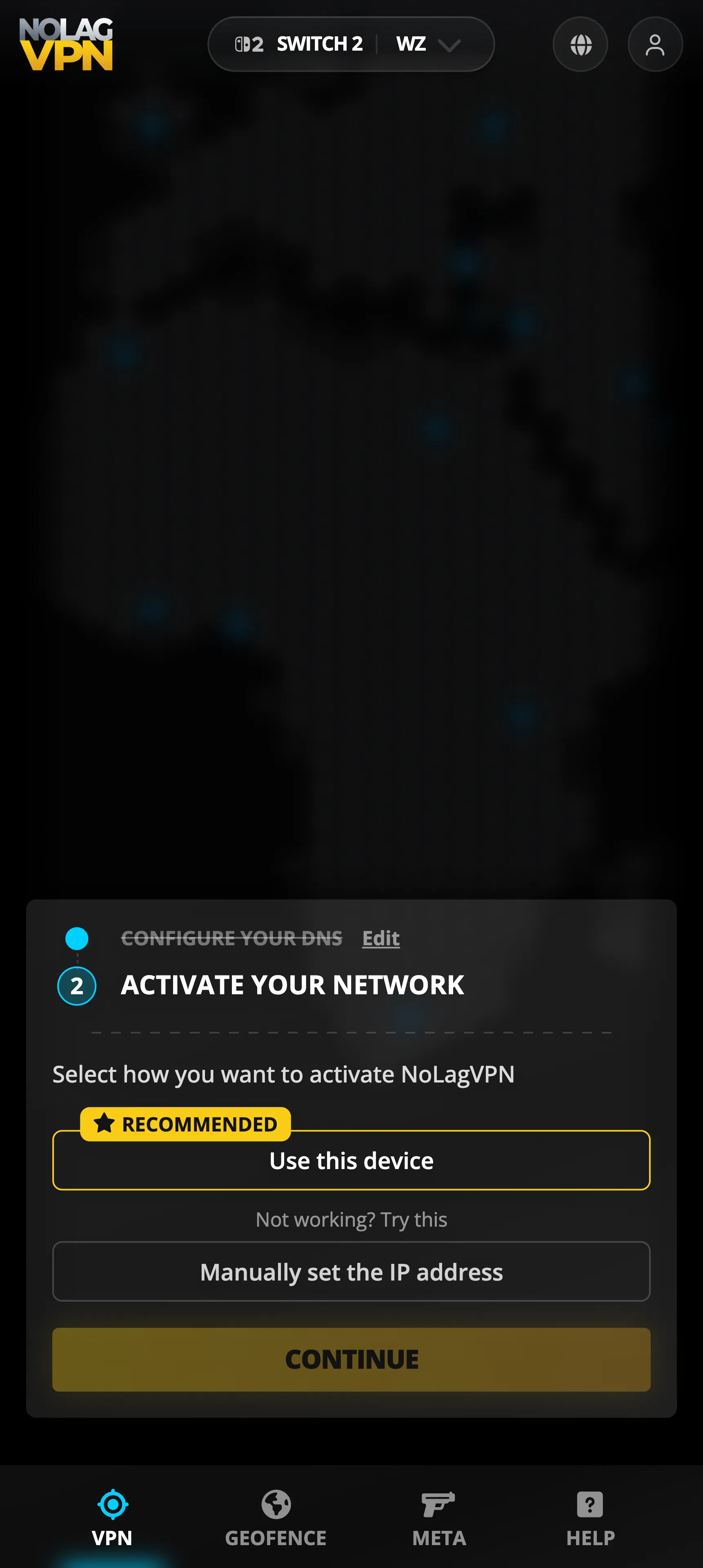
Select the location you want to use
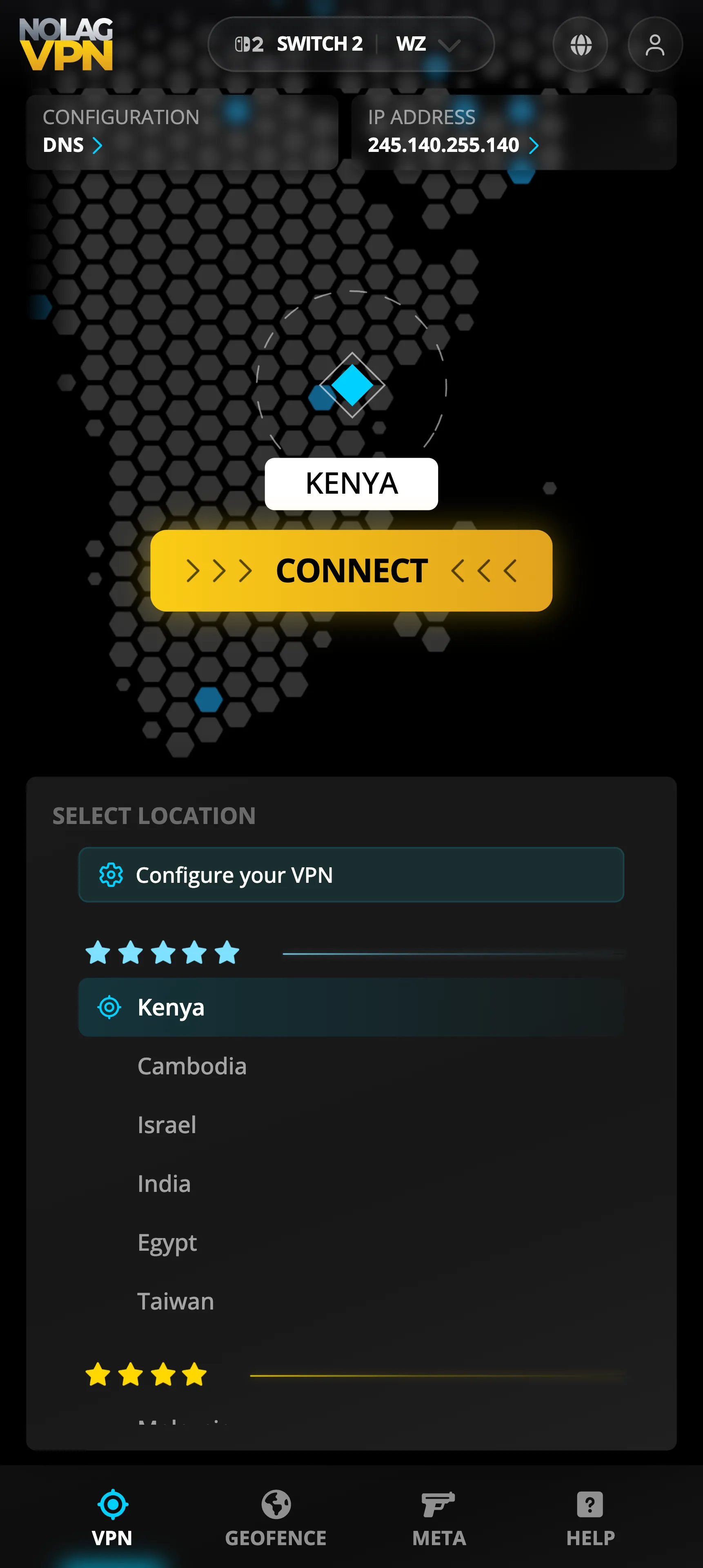
Wait 30 seconds for the changes to take effect
How It Works
Understanding DNS-based VPN routing
Instead, you just switch the DNS settings to use an IP address from NoLagVPN (you get this IP when you subscribe). This means only the internet traffic associated with Warzone game servers or matchmaking services will go through the VPN.
This is different from most VPNs, where everything you do online goes through the VPN. With this DNS tweak, it's just Warzone stuff that uses the VPN.
As a result, you can now drop into bot lobbies while your normal internet activities, like web browsing or streaming, will still be fast because it uses your regular connection.
Ready to get bot lobbies?
Start dominating easier lobbies today